Linux CUDA Container Inference: CDI vs Official Images
>Troubleshoot and configure Linux CUDA GPU inference containers. Learn official NVIDIA CUDA image workflows, CDI device injection, and runtime diagnostics.
🎧 Listen — ~8 min
Audio summary not available yet
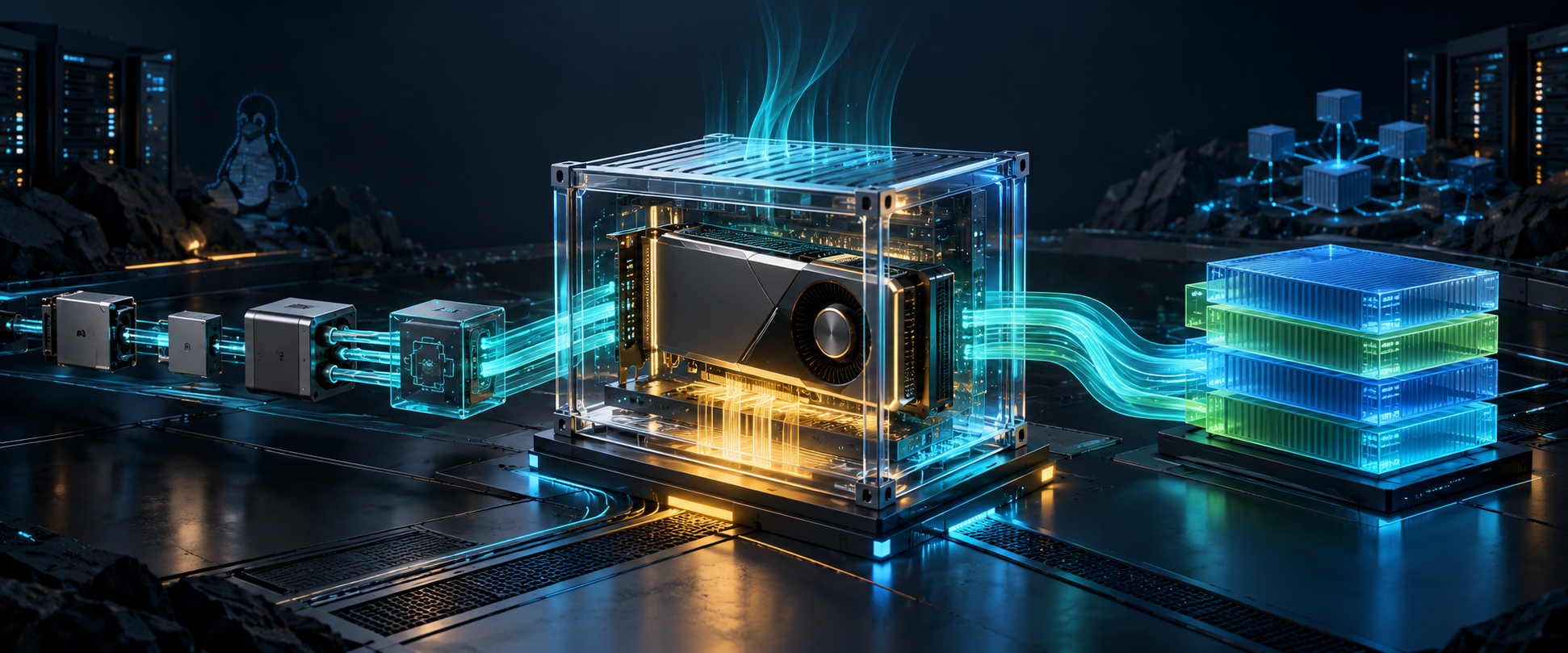
Deploying high-throughput inference engines inside Linux containers requires aligning host kernel modules, userspace driver libraries, container runtimes, and the application-level CUDA Toolkit. Misconfigurations between these layers trigger silent fallbacks to CPU execution, runtime driver mismatch errors, or container startup failures.
Key takeaways
- Official CUDA base images contain CUDA user-space components; GPU access is provided by the configured host container runtime, commonly through the NVIDIA runtime hook (
--gpus all). The image alone does not configure host GPU access. - Container Device Interface (CDI) is an open specification for exposing devices to CDI-capable container engines. NVIDIA still generates the NVIDIA-specific device specification, and engine support, version, configuration, and permissions must be checked on the host.
- Troubleshooting CUDA container failures starts with host driver health, the selected device-injection path, device-node access, and the workload’s actual shared-memory needs; these checks do not guarantee that every framework/runtime combination is compatible.
1. Official NVIDIA CUDA images vs. Container Device Interface (CDI)
Selecting the right device injection strategy impacts continuous integration, rootless execution, Kubernetes integration, and host portability.
| Deployment Dimension | NVIDIA runtime hook path | CDI path |
|---|---|---|
| Interface | NVIDIA Container Toolkit runtime/hook configuration | Open CDI specification; device entries are supplied by the device vendor |
| Typical Docker invocation | docker run --rm --gpus all IMAGE nvidia-smi | docker run --rm --device nvidia.com/gpu=all IMAGE nvidia-smi, when a matching CDI device is visible and CDI is enabled |
| Runtime requirements | Docker configured with the NVIDIA runtime integration | CDI-capable engine/CLI, valid device spec in a configured directory, and supported versions; Docker’s CDI setup is not automatic in every deployment |
| Rootless behavior | Depends on runtime and host permissions | CDI can improve compatibility, but rootless operation still depends on device ownership, cgroups, and host security policy |
| Portability | NVIDIA-specific runtime integration | Standardized format across vendors; each vendor still provides device-specific configuration |
| NVIDIA spec location | Runtime configuration varies by installation | With NVIDIA Container Toolkit 1.18+, the refresh service writes /var/run/cdi/nvidia.yaml; /etc/cdi is also a CDI search directory |
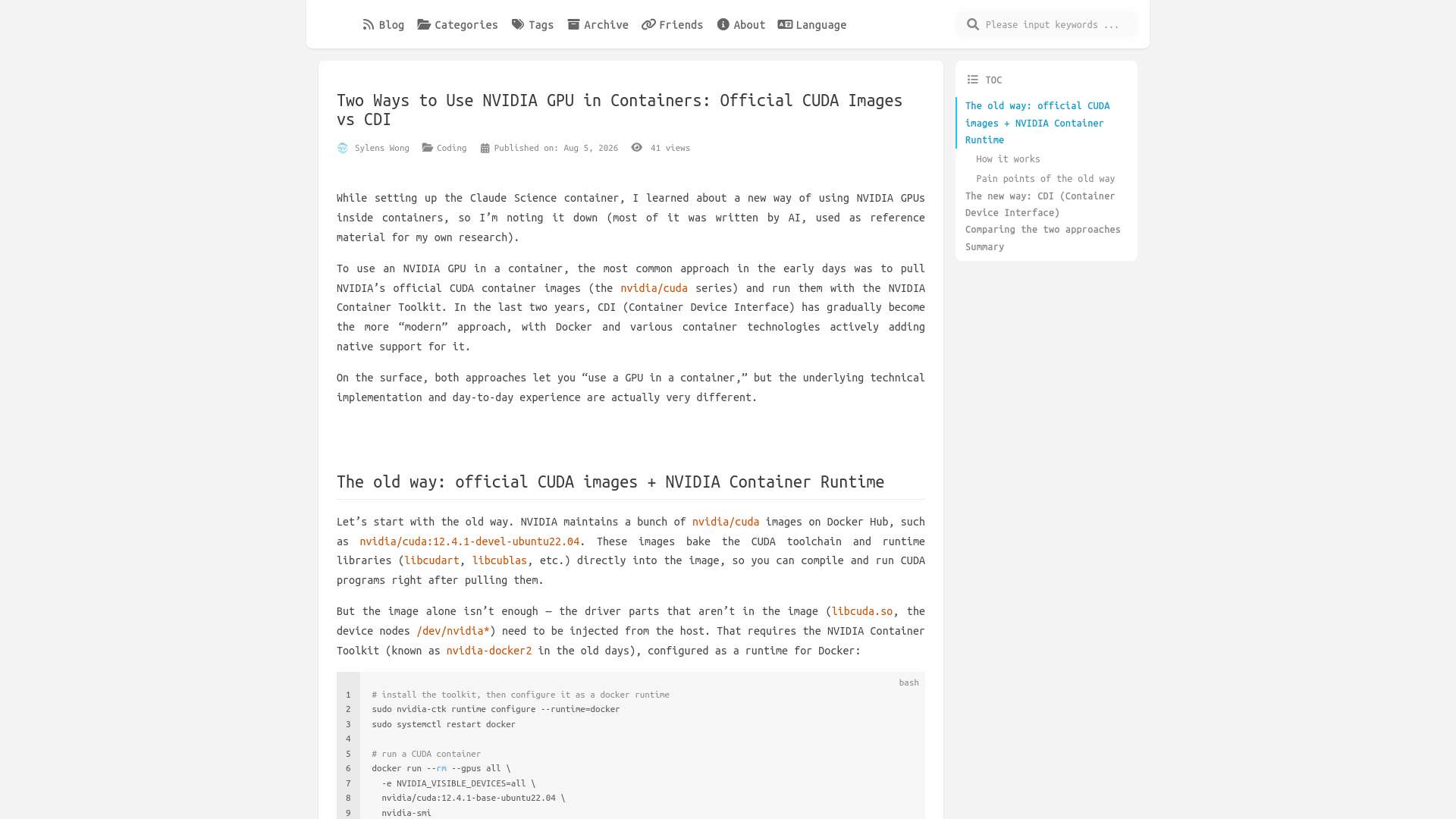
CDI’s format is standardized, but GPU discovery and the contents of NVIDIA’s device spec remain NVIDIA-specific. NVIDIA documents automatic spec refresh starting with Container Toolkit 1.18; Docker documents its own CDI prerequisites and spec locations. Check both before adopting the --device path: NVIDIA CDI support and Docker CDI setup. For a secondary walkthrough, see Sylens Wong’s comparison.
2. Host prerequisites and environment verification
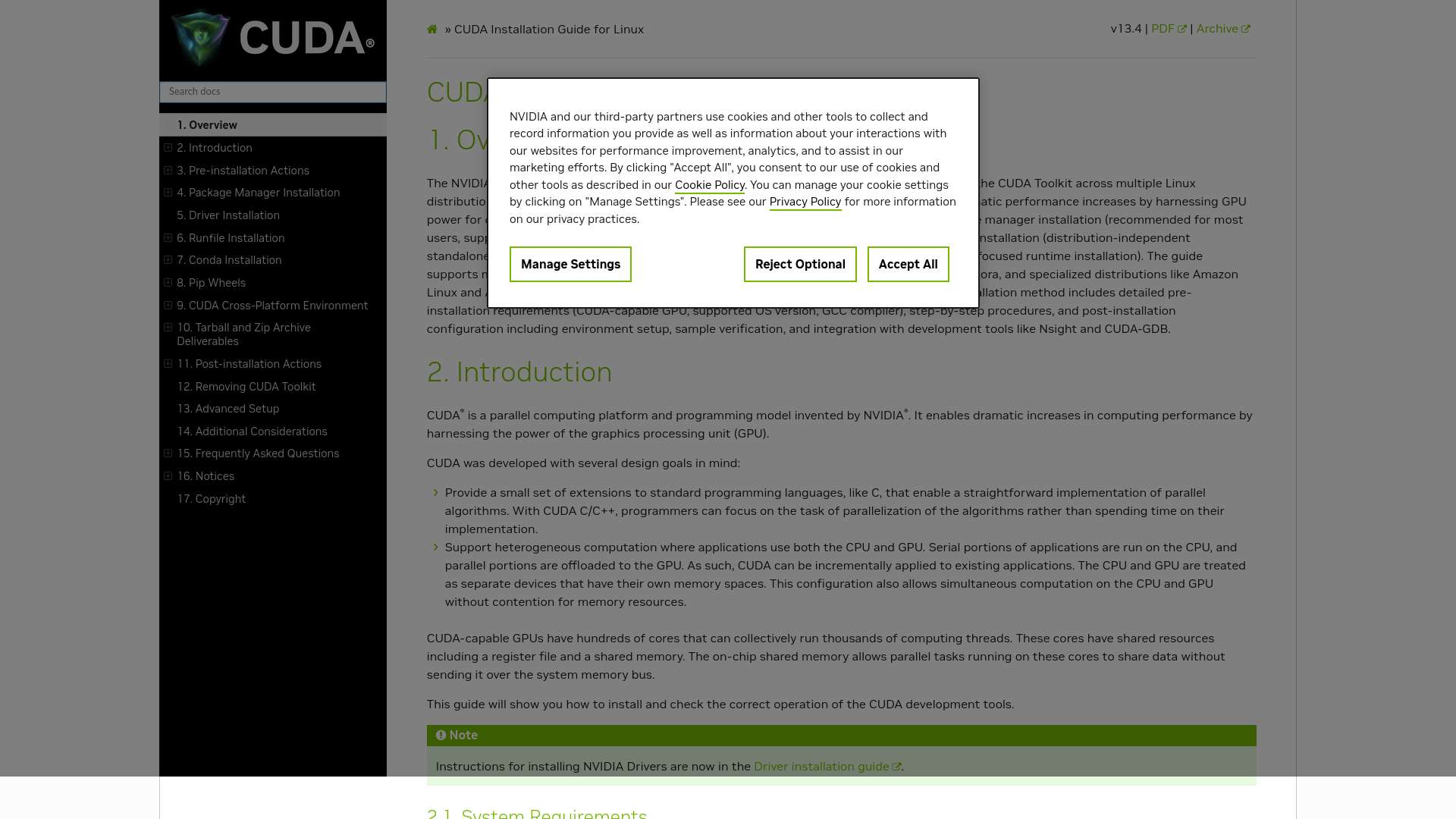
Before building container images, verify the Linux host kernel and hardware driver state. As outlined in the NVIDIA CUDA Installation Guide for Linux, standard installation requires verifying a CUDA-capable GPU, supported GCC compiler, and compatible kernel headers.
Run the following diagnostic commands on the host machine:
1lsmod | grep -i nvidia
2ls -la /dev/nvidia*
3nvidia-smi
If nvidia-smi outputs valid hardware statistics (such as driver version, memory usage, and GPU temperature), the host kernel modules are operating correctly.
First confirm that your installed engine supports CDI and that its CDI feature is enabled. For NVIDIA Container Toolkit 1.18 and later, the documented refresh service normally generates /var/run/cdi/nvidia.yaml after toolkit/driver installation or upgrade and at reboot. Check the discovered device names before launching a workload:
1nvidia-ctk cdi list
2sudo systemctl status nvidia-cdi-refresh.path nvidia-cdi-refresh.service
If automatic refresh is unavailable or you need a manual spec, follow the command and output path for your installed toolkit version in NVIDIA’s CDI generation guide. Avoid assuming /etc/cdi/nvidia.yaml is the generated default on current installations.
3. Building and deploying inference containers
Pattern A: Standard deployment using official CUDA runtime images
When using standard container pipelines, build from official CUDA images and execute using the NVIDIA runtime hook:
1FROM nvidia/cuda:12.4.1-runtime-ubuntu22.04
2
3WORKDIR /app
4
5RUN apt-get update && apt-get install -y --no-install-recommends \
6    python3 \
7    python3-pip \
8    && rm -rf /var/lib/apt/lists/*
9
10COPY requirements.txt .
11RUN pip3 install --no-cache-dir -r requirements.txt
12
13COPY serve.py .
14
15ENV NVIDIA_VISIBLE_DEVICES=all
16ENV NVIDIA_DRIVER_CAPABILITIES=compute,utility
17
18ENTRYPOINT ["python3", "serve.py"]
Run the container using --gpus:
1docker run -d \
2  --name llm-inference \
3  --gpus all \
4  --ipc=host \
5  -p 8000:8000 \
6  llm-inference:latest
Pattern B: Native CDI deployment
Use this only after the host’s CDI spec lists the device and your exact engine/version has CDI configured. Docker documents CDI setup and prerequisite versions; Podman also requires the NVIDIA spec to be discoverable. The example below shows device selection only—review your runtime’s shared-memory and security settings separately:
1podman run --rm \
2  --device nvidia.com/gpu=all \
3  llm-inference:latest nvidia-smi
For Docker, use its documented CDI configuration and then test the same device name with --device. If that setup is absent, the command should fail; use the NVIDIA runtime hook path instead of assuming CDI is enabled. See Docker’s CDI guide and NVIDIA’s CDI guide.
4. Troubleshooting common CUDA container failure modes
Deploying production inference workloads frequently encounters container runtime edge cases. Follow these root-cause diagnostic workflows:
Failure 1: "CUDA driver version is insufficient for CUDA runtime version"
- Symptom: Inference frameworks (such as PyTorch, vLLM, or TensorRT-LLM) fail immediately during initialization with driver compatibility errors.
- Root Cause: The host NVIDIA driver is older than the minimum driver required by the CUDA Toolkit compiled inside the container.
- Remediation: Review the driver version table in the NVIDIA CUDA Installation Guide for Linux and upgrade the host driver, or downgrade the CUDA runtime image in the Dockerfile to match the host driver capabilities.
Failure 2: NVIDIA container runtime initialization errors
- Symptom: Docker cannot create a GPU-enabled container or reports that a library or device cannot be loaded.
- What to check: Identify whether the command uses the NVIDIA runtime hook (
--gpus) or CDI (--device); those are different injection paths. Check hostnvidia-smi, toolkit/driver versions, runtime configuration, and—when using CDI—whethernvidia-ctk cdi listshows the requested device. NVIDIA’s Container Toolkit troubleshooting guide recommends enabling runtime debug logs for diagnosis; do not assume a missing library-cache entry is the cause.
Failure 3: Device-node access denied
- Symptom: The process can see some GPU nodes but cannot open the required
/dev/nvidia*device. - What to check: Inspect device nodes and container user/group mappings, cgroups, and host security controls. On SELinux systems, NVIDIA documents cases where permissions fail and notes that disabling labels removes container isolation; do not apply that as a blanket fix. See the NVIDIA troubleshooting notes.
Failure 4: Shared-memory pressure or worker failures
- Symptom: Multi-process frameworks fail or workers terminate when shared-memory needs exceed the container’s configured
/dev/shmsize. - What to check: Measure the framework’s actual shared-memory requirement and configure
--shm-sizeaccordingly.--ipc=hostis another option but shares the host IPC namespace and has isolation implications; NVIDIA documents both approaches in its Containers for Deep Learning Frameworks guide.
For distributed architectures, see our guide to disaggregated LLM inference: prefill-decode, NVFP4, and GB200 and evaluating AI features: latency, cost, and reliability gates.
5. Production verification checklist
Before routing live inference traffic to a newly deployed GPU container host, verify the host first and then run the test for the injection path you actually configured. NVIDIA’s CDI device listing and Docker’s CDI prerequisites are version/configuration dependent:
1#!/usr/bin/env bash
2set -euo pipefail
3
4echo "=== Verifying Host Driver ==="
5nvidia-smi --query-gpu=name,driver_version,memory.total --format=csv,noheader
6
7echo "=== Verifying Device Node Permissions ==="
8test -r /dev/nvidiactl && test -w /dev/nvidiactl
9test -r /dev/nvidia-uvm && test -w /dev/nvidia-uvm
10
11echo "=== Testing Container CUDA Hook ==="
12docker run --rm --gpus all nvidia/cuda:12.4.1-base-ubuntu22.04 nvidia-smi
13
14echo "=== Testing CDI (only if configured and device is listed) ==="
15docker run --rm --device nvidia.com/gpu=all nvidia/cuda:12.4.1-base-ubuntu22.04 nvidia-smi
16
17echo "=== Verification Succeeded ==="
The CDI command is conditional: if the daemon is not configured for CDI or the NVIDIA spec is absent, its failure does not prove that the GPU or CUDA hook is broken. Diagnose the selected path separately.
Source website screenshots
Frequently asked questions
What is the difference between CUDA runtime and CUDA devel images?
Official NVIDIA base images are split into three tiers: base includes only minimal CUDA runtime libraries; runtime adds mathematical acceleration libraries (cuBLAS, cuDNN); and devel includes compiler toolchains (nvcc), headers, and development binaries. Production inference containers should deploy on runtime or base images to minimize attack surface and image size.
Why use CDI instead of the standard --gpus all flag?
CDI provides a standardized device-injection format that can reduce reliance on runtime-specific hooks when the engine and device spec support it. It does not guarantee rootless operation: device permissions, cgroups, engine configuration, and host security policy still apply. NVIDIA’s CDI spec is generated from the installed NVIDIA driver/toolkit, while Docker requires CDI to be configured for the relevant engine/version.
Does upgrading the host Linux kernel break CUDA containers?
Kernel updates can desynchronize out-of-tree NVIDIA kernel modules if DKMS (Dynamic Kernel Module Support) is not properly configured. If the kernel updates without rebuilding nvidia.ko, host GPU communication fails, rendering all container GPU bindings inoperable until kernel modules are recompiled.
Sources and image references
- NVIDIA CUDA Installation Guide for Linux
- NVIDIA Container Toolkit: CDI support and spec generation
- Docker CDI guide and prerequisites
- NVIDIA Container Toolkit troubleshooting
- NVIDIA Containers for Deep Learning Frameworks: Docker shared memory options
- Sylens Wong: Two Ways to Use NVIDIA GPU in Containers: Official CUDA Images vs CDI
Keep reading
Related reading
⚡ AI Engineering Briefing
AI model releases, practical tutorials, developer tools, and engineering research. Unsubscribe anytime.
Comments
Comments are temporarily unavailable while the public discussion space is being configured.